
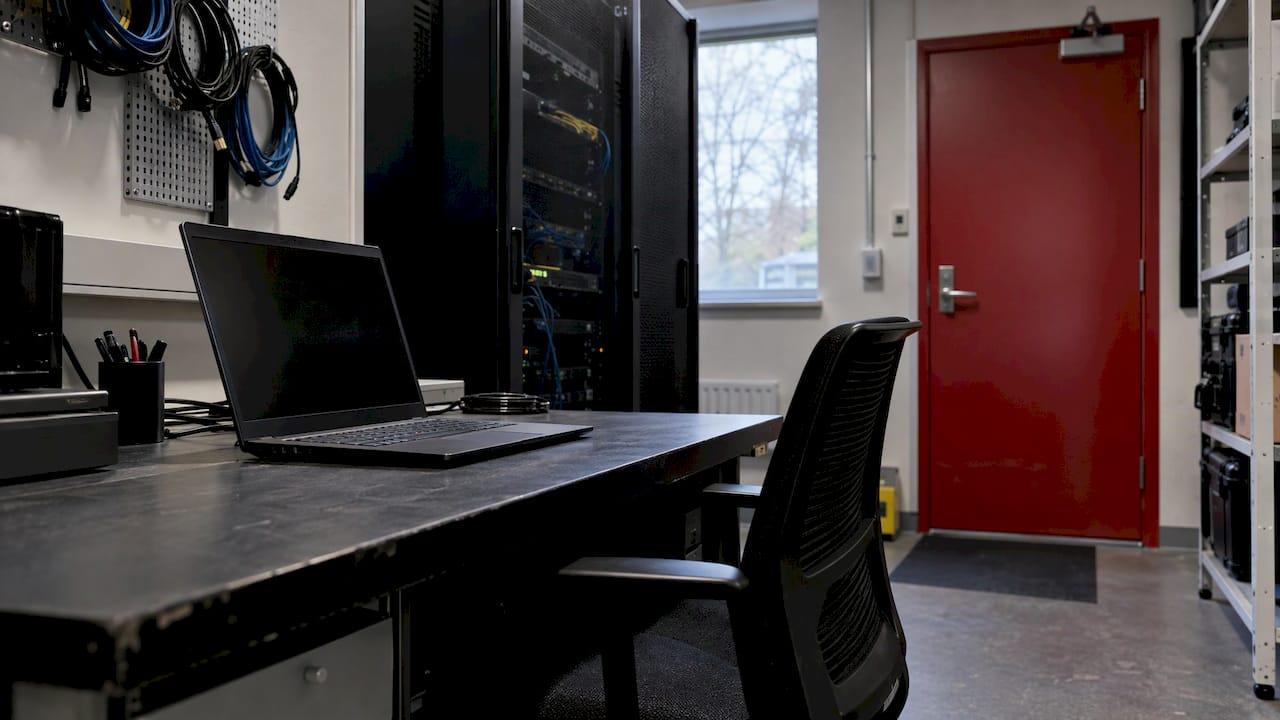
A privileged access workstation (PAW) is a dedicated, hardened computer used only for administrative work, kept apart from email, general web browsing and everyday productivity apps. Its purpose is to keep your most powerful credentials off the machines where phishing and malicious downloads usually land. For most small and midsize businesses (SMBs), the right move is not a PAW for everyone. It is a PAW for the few people whose accounts could take down the company, built in a way the budget can carry.
This guide covers what a PAW is, who needs one, what a secure design includes, the controls to apply, and how to phase the rollout. It is written for owners, operations leaders and IT decision-makers in the US.
TL;DR
- A PAW is a locked-down device used only for admin tasks. It protects privileged credentials from phishing, credential theft and impersonation.
- Start with the accounts that matter most: global admins, domain admins, and anyone who can change security controls or reach sensitive data.
- Two designs work: dedicated hardware (strongest) or one device running a PAW with the everyday environment in a virtual machine (cheaper).
- The core controls are application control, strong multifactor authentication, device compliance, restricted internet access and no general productivity use.
- Pilot with two or three administrators, fix the friction, then expand. Admins who find the PAW painful will route around it.
Table of Contents
- What a privileged access workstation is
- Why a separate device improves security
- Who actually needs one
- What a secure PAW design includes
- Controls to apply, in order
- The cost question for a smaller company
- A phased rollout that sticks
- Common mistakes
- Perspective
- Where Mindpod can help
- FAQ
- Sources
What a privileged access workstation is
Microsoft describes a PAW as a dedicated, hardened device used only for administrative tasks, separate from regular user devices and restricted from general browsing and productivity activity. The same page lists the hallmarks of a secure one: strong authentication, restricted use, limited internet access and secure remote connectivity to the systems being managed.
You will see the same idea under other names. "Secure admin workstation," "admin platform" and "PAW design" all point at one concept: the machine you administer from is treated as part of the security boundary. The US Department of Defense's Windows PAW STIG, a configuration standard from DISA, uses these terms interchangeably, and it requires that high-value IT resources be remotely managed only through a PAW.
How a PAW differs from a normal workstation or a server
A normal workstation is built for productivity. It has email, a browser, chat, file sharing and a long list of installed apps. Each of those is a way in for an attacker.
A server is a different thing entirely: it runs a workload, such as file storage or a line-of-business application, and users or other systems connect to it. A PAW is neither. It is a client device that administrators use to reach servers, cloud consoles and identity systems. The question it answers is not "what does this machine run?" but "how much do we trust the machine from which we manage everything else?"
The difference in practice:
| Standard workstation | Privileged access workstation | |
|---|---|---|
| Purpose | Daily work for any employee | Administrative tasks only |
| Email and web browsing | Open | Blocked or tightly restricted |
| Installed software | Broad | Only required admin tools, enforced by application control |
| Accounts that sign in | Standard user accounts | Privileged accounts, used only here |
| Management | Routine patching and policy | Hardened baseline, closer monitoring |
What "privileged user" means
A privileged account has elevated permissions. CISA's example is a Tier-0 domain administrator, an account that can access and configure highly sensitive accounts, resources and functions. It does not have to be that senior. In Microsoft Entra, even the User Administrator role is privileged, because it can create users, manage groups and reset passwords. An attacker who controls an account that can reset passwords can often become anyone.
Why a separate device improves security
Most breaches of admin accounts do not start with a clever attack on the admin tool. They start with an ordinary phishing email or a bad download on the same laptop the administrator uses for everything else. Microsoft's guidance says that separating sensitive tasks and accounts from daily-use devices protects privileged credentials from phishing, vulnerabilities, impersonation attacks and credential theft.
The UK National Cyber Security Centre (NCSC) makes a point that matters if you are already investing in zero trust: using architectural strategies such as zero trust does not remove the need for a PAW, because some risks can only be reduced with a highly trusted device, and the PAW underpins the other technical controls. Conditional Access can check whether a device looks healthy. A PAW is what gives that check something solid to rest on.
The NCSC is a UK body, and its guidance is not US regulation. It is, though, a clear and widely used statement of the reasoning, and it lines up with Microsoft's and CISA's US-facing material.

Who actually needs one
Not every administrator, and not every business, needs the full treatment. The NCSC says PAWs matter most for high-risk access: access where compromise would have serious impact, or where the systems could interest a capable threat actor. That includes access that can change or bypass critical security controls or expose sensitive data.
In a typical SMB, that usually means:
- Global administrators and privileged role holders in Microsoft Entra and Microsoft 365
- Domain administrators and anyone who manages Active Directory
- Subscription owners and contributors with broad rights in Azure
- People who administer backups, since attackers go after backups before they trigger ransomware
- Security tooling administrators, such as those who manage endpoint protection or logging
The NCSC's own guidance is candid that a PAW is a risk-based decision. Its small-company example describes a firm that manages only an information-only website over SSH. The impact of compromise is low, the company cannot afford PAWs, and it accepts the remaining risk while following mobile device guidance. A company holding client files, patient records or payment data is in a different position.
A quick test: if one stolen admin session could stop operations, expose regulated data or let an attacker disable your defenses, those accounts are PAW candidates. If you are not sure which accounts fall into that group, a least-privilege review comes first. Our Azure least privilege checklist shows how to find over-privileged accounts in a few days.
What a secure PAW design includes
Good PAW design is mostly about subtraction. You remove the things that make a normal workstation risky, then enforce the removal so it cannot drift back.
Dedicated hardware or a virtual setup
Microsoft describes two hardware profiles:
- Dedicated hardware. Separate devices for user tasks and administrative tasks. The admin device supports a trusted platform module (TPM) and the security features of Windows Enterprise editions.
- Simultaneous use. One physical computer runs the PAW as the host operating system, and the regular user workstation runs as a virtual machine on top of it.
The direction of that second arrangement matters. The trusted environment is the host. The everyday, riskier environment is the guest. Reversing it, with the PAW as a VM inside a normal user desktop, gives the attacker the foundation.
The NCSC adds a practical fallback for cases where a dedicated PAW is not possible: high-risk administrators do most of their work on a locked-down device and use a local or cloud virtual machine to browse down for riskier activities like reading email and opening complex documents.
Account mapping
You do not need one PAW per administrator. Microsoft notes that the architecture does not require a 1:1 mapping of accounts to workstations, although that is a common setup. One PAW can serve one or more accounts. For a small IT team, a shared set of PAWs, or a pair of devices kept for specific roles, can be enough.
Restrictions that define the device
Microsoft's training module describes a PAW as protected from the internet and locked down so that only the required administration apps can run. It should never be used for web browsing, email or other common end-user apps, and the module calls for strict application control, no wireless connections, no external USB devices and multifactor authentication. Those are the strictest settings. Many SMBs will adapt them, for example allowing a wired connection plus tightly controlled access to the admin portals they need, and should write down every exception.
Controls to apply, in order
This is the stack we would build, roughly in priority order. It assumes a Microsoft environment, which is where most US SMBs run.
1. Identity: separate admin accounts with strong sign-in
Admins need a standard account for daily work and a distinct privileged account used only on the PAW. Require phishing-resistant multifactor authentication for administrator roles; Microsoft documents a Conditional Access policy for exactly this. Pair it with a policy that requires administrators to use compliant or hybrid-joined devices, so admin sign-ins are only accepted from managed machines. Our Conditional Access design guide explains how to phase these policies in without locking yourself out, and our Entra security best practices cover the tenant-level basics.
Microsoft's Zero Trust assessment guidance (check DEV-122) frames the requirement the same way: admin actions are allowed only from a designated secure admin workstation. It rates the implementation effort as high, because you must procure and provision dedicated devices, define Conditional Access policies and change admin workflows. User impact is medium. Plan for that effort rather than being surprised by it.
2. Device: managed, compliant and enrolled
Enroll the PAW in Microsoft Intune with identity through Microsoft Entra ID, and monitor it with Microsoft Defender for Endpoint, as Microsoft's device guidance lays out. Then keep it compliant. Build compliance policies around the hardware and OS protections the device supports, such as TPM and Secure Boot, and make non-compliance block access to admin portals.
3. Software: allow only what the job needs
Application control is what turns a hardened laptop into a PAW. If only approved admin tools can run, a malicious download has nowhere to execute. For Windows, that means Windows Defender Application Control or AppLocker. We wrote a practical guide to Windows Defender Application Control for SMBs that covers audit mode first, then enforcement.
4. Network: limit where the PAW can go
A PAW should reach the admin portals and management endpoints it needs and little else. Filter outbound traffic by allow list, and where possible restrict the admin portals themselves so they accept connections only from the PAW. For Azure virtual machines, just-in-time access keeps management ports closed until an approved request opens them.
5. Government baseline: the Windows PAW STIG
CISA advises creating secure administrative Active Directory organizational units to host PAWs, implementing the Windows PAW STIG and following least privilege. Even if you are not a defense contractor, the STIG is a free, detailed checklist you can borrow from. The DISA benchmark was updated in 2025, according to Tenable's audit listing, so check the current version before you adopt it.
The cost question for a smaller company
PAWs cost money, and pretending otherwise leads to stalled projects. One practitioner article notes that establishing them can mean additional hardware or licenses, hardened OS builds and dedicated IT support, and that ongoing patching, monitoring and support add to the total.
The same source says successful projects often start small, with the most critical administrators, then expand while policies are tuned and user pain points resolved. That matches what we see as sensible for SMBs. Ways to keep the budget in check:
- Limit the population. Five accounts with real blast radius are a PAW project. Fifty are a least-privilege problem to solve first.
- Use the virtual model where hardware is the constraint. The host-and-guest design needs one capable device per admin, not two.
- Choose mid-range hardware. A PAW does not need a powerful machine. It needs a TPM, a supported OS and enough memory to host a VM if you use that design.
- Reduce standing privilege. The fewer permanent admin roles you have, the fewer people need a PAW all day. Role activation on demand, as in our Entra ID governance guide, shrinks the problem.
A phased rollout that sticks
Microsoft is blunt about the human side: users tend to abandon secure solutions that limit productivity in favor of insecure ones that enhance it. A correctly configured PAW makes non-admin work awkward, which is why administrators should have two workstations, one PAW and one standard machine.
A workable sequence:
- Inventory privileged roles (week 1). List who holds which admin roles across Entra, Microsoft 365, Azure and on-premises directories. Remove what is not needed.
- Create separate admin accounts (weeks 1 to 2). Cloud-only where possible, with phishing-resistant sign-in.
- Build one reference PAW (weeks 2 to 4). Apply the baseline, application control and compliance policy. Run application control in audit mode first.
- Pilot with two or three administrators (weeks 4 to 8). Collect every complaint. Missing tools, slow remote sessions and awkward ticket workflows are the usual ones.
- Enforce through Conditional Access. Only once the pilot is stable, require compliant admin devices for privileged roles. Keep a tested break-glass account outside the policy, stored securely.
- Expand and review. Add the next tier of administrators and review exceptions quarterly.
The weeks above are our planning estimate for a small environment, not a standard. Your timeline depends on how many admins you have and how tangled your permissions are.
Helping administrators change habits is half the project. Cognistry's piece on why change management fails is a useful lens for why admins bypass controls that get in their way, and how to design the transition so they do not.
Common mistakes
- Using the PAW for "just one quick email." The first exception becomes the habit. Give admins a second, normal device so they never need one.
- Hardening the device but not the account. A PAW with a weak password or a phishable second factor is a locked door with the key under the mat.
- Allowing privileged sign-in from anywhere. If admin accounts can still sign in from any laptop, the PAW is optional, not protective. Enforce it with Conditional Access.
- Skipping monitoring. Send PAW sign-in and security events to your logging and alerting, and have someone responsible for reviewing them.
- Treating it as a one-off. PAWs need patching and baseline reviews like any other endpoint, and sometimes faster.
Perspective
Most SMBs we talk to are not short of security tools. They are short of a clear decision about which few accounts deserve extreme protection. A PAW is the right answer for those accounts and the wrong answer for everyone else.
Our approach is to rank before we build. We look at where the risk is highest, set that against what the business can sustain, and write the plan in plain language the client owns. For a PAW, that usually means a small pilot, a documented exception process and monitoring from day one, not a big-bang rollout that admins quietly work around.
We also think the people side decides success. A hardened device that nobody wants to use protects nothing. Starting with the administrators' real workflow, and building the controls around it, is how a PAW survives its first busy quarter.
jaras
Where Mindpod can help
If you are weighing a PAW and are unsure which accounts need one, our engagement starts with a free technology assessment that produces a prioritized, plain-language plan you own. From there we can deliver and run the work: identity hardening, Intune and Conditional Access configuration, and the security assessment behind it. For a first read on your own exposure, try the AI Privilege Readiness Self-Assessment, or book a 30-minute call to talk through your admin accounts.

If your environment needs a technology leader to own decisions like this one, our fractional CTO engagements are built for companies that do not have a full-time one.
FAQ
Is a PAW the same as a secure admin workstation?
In practice, yes. "Secure admin workstation," "admin platform" and "PAW" describe the same idea: a dedicated, hardened device used only for administration. Microsoft's own documentation uses the terms together, for example in its Zero Trust assessment guidance.
Can a small business use a virtual machine instead of a second laptop?
Yes. Microsoft describes a simultaneous-use model in which the PAW runs on the physical computer and the everyday workstation runs as a VM. The trusted environment must be the host, not the guest. Dedicated hardware is stronger, so the VM model suits smaller budgets rather than the highest-risk roles.
Does zero trust or Conditional Access replace the need for a PAW?
No. The NCSC states that zero trust and similar architectural strategies do not remove the need for a PAW, because some risks need a highly trusted device. Conditional Access decides who and what may connect, and a PAW gives you a device you can actually trust when it does.
How many people should get a PAW?
Only those whose access is high risk: global admins, domain admins, and people who control backups or security tooling. Start with a handful, learn from the pilot, then expand. If you have dozens of standing admins, reduce privileges first.
Sources
- Privileged access | Microsoft Learn
- Microsoft Windows PAW STIG (STIG Viewer)
- CISA countermeasure: privileged access workstations
- Microsoft Entra User Administrator role
- Legacy privileged access guidance | Microsoft Learn
- NCSC: Principles for secure PAWs
- NCSC: Secure system administration
- NCSC: Protecting how you administer cloud services
- Use privileged access workstations | Microsoft Learn
- Secure devices and workstations | Microsoft Learn
- Microsoft Zero Trust assessment DEV-122
- Conditional Access: phishing-resistant MFA for administrators
- Conditional Access: require compliant or hybrid joined devices for administrators
- DISA MS Windows PAW audit listing (Tenable)
- Implementing Privileged Access Workstations (MSEndpointMgr)