

Enable Baseline Security Mode, then pilot it before you enforce it tenant-wide. A Microsoft 365 security baseline is a prebuilt set of recommended security settings for your apps and identity platform, and Baseline Security Mode (BSM) is the admin center feature that applies them. The immediate payoff: fewer legacy protocol exposures, centralized controls that used to require PowerShell scripts, and a documented starting point for audits.
TL;DR:
- Enabling Baseline Security Mode requires careful testing via simulation and staged rollout to prevent disruption from legacy dependencies.
- The highest leverage fixes are identity hardening and blocking legacy protocols, but they can break older Outlook builds or third-party integrations if not properly assessed.
- Deployment methods include cloud policies, ADMX templates via Intune, and Group Policy, with cloud policies overriding local settings in case of conflict.
- Regular inventory and monitoring during phased deployment help catch unsupported legacy tools, automate exceptions, and ensure a smooth transition.
- Using assessment tools like Zero Trust or Defender for Endpoint calibrates the importance of settings and verifies enforcement effectiveness post-deployment.
Table of Contents
- What Is a Microsoft 365 Security Baseline?
- What Settings Does the Security Baseline Cover?
- How Do You Enable Baseline Security Mode?
- Where Do Cloud Policies, ADMX, and Group Policy Fit?
- How Should You Test and Roll Out Baseline Changes?
- How Do Zero Trust Assessment and Defender for Endpoint Fit In?
- Where Do You Get Baseline Packages and Track Version Changes?
- What Operational Mistakes Break Baseline Rollouts?
- What Does a Full Baseline Rollout Checklist Look Like?
- Publisher Perspective: What Actually Slows SMBs Down
- Get a Free Security Assessment From Mindpodtech
- Sources
- FAQ
What Is a Microsoft 365 Security Baseline?
A Microsoft 365 security baseline is a Microsoft-curated set of hardening recommendations that spans several services at once instead of forcing you to configure each one separately. Baseline Security Mode pulls these into one toggle inside the admin center, covering Microsoft 365 Apps, Teams, Exchange Online, SharePoint and OneDrive, and Microsoft Entra ID.
Before BSM existed, most of this configuration lived in PowerShell scripts, scattered admin center pages, or Group Policy objects that only worked for domain-joined machines. That fragmentation is exactly why so many tenants run for years with legacy authentication still enabled somewhere nobody remembers turning on.
Microsoft frames baselines as starting points, not mandates. The security baseline for Microsoft 365 Apps for enterprise explicitly says organizations should weigh security gains against productivity impact, and settings that break workflows should get isolated rather than forced on everyone at once. That distinction matters when you're deciding rollout order.
What the baseline actually touches, at a glance:
- Microsoft 365 Apps for enterprise: macro, add-in, and file-open restrictions.
- Exchange Online: authentication and legacy protocol controls.
- Teams and SharePoint/OneDrive: sharing and external access defaults.
- Microsoft Entra ID: conditional access and authentication method policies.
The scope is broad enough that a single BSM rollout touches nearly every productivity workflow your staff runs daily, which is exactly why testing before enforcement isn't optional.
What Settings Does the Security Baseline Cover?
The baseline groups its recommendations into a handful of categories, and each one carries a different blast radius if you get the rollout order wrong.
Identity and authentication sit at the top of the list for a reason. Phishing-resistant MFA for admin and privileged roles, blocking legacy or basic authentication, and layering in conditional access policies close off the attack path that shows up in nearly every credential-based breach. Legacy authentication protocols don't support modern MFA at all, so any account still using them is effectively unprotected no matter what your conditional access policy says on paper.
File and protocol controls come next: blocking insecure protocols, restricting non-HTTPS file opens, and locking down macros, OLE, and DDE inside Office documents. These three (macros, OLE, DDE) have been the delivery mechanism for a disproportionate share of document-based malware for over a decade, which is why Microsoft treats them as baseline, not optional, hardening.
Client and browser controls address older authentication mechanisms like RPS and IDCRL that some legacy add-ins and thick clients still depend on. And Exchange/EWS controls deserve special attention because older Outlook builds and third-party integrations frequently rely on EWS in ways that break the moment you restrict it. Check your minimum supported build before you touch these settings.

Why it matters: Microsoft's own Zero Trust baseline guidance treats identity hardening and legacy protocol blocking as the highest-leverage fixes an organization can make, precisely because so many real-world compromises trace back to exactly these gaps.
Category summary:
- Identity/auth: MFA for privileged roles, legacy auth blocks, conditional access.
- File/protocol: insecure protocol blocks, macro/OLE/DDE restrictions.
- Client/browser: legacy RPS/IDCRL protocol controls.
- Exchange/EWS: build prerequisites and access-method changes.
How Do You Enable Baseline Security Mode?
You'll find Baseline Security Mode inside the Microsoft 365 admin center, not buried in a separate security portal, which is one reason it's gotten faster adoption than older PowerShell-only baselines.
- Sign in to the Microsoft 365 admin center with an account that holds Global Administrator, Security Administrator, or Conditional Access Administrator permissions.
- Navigate to Settings > Org settings > Security and privacy > Baseline Security Mode.
- Review the full list of settings BSM will apply, organized by service.
- Use the simulation or temporary disable options to test individual settings against pilot users before turning them on tenant-wide.
- Enable the baseline for your pilot group and monitor for a defined window before expanding.
The simulation capability is the part most admins skip and later regret. BSM lets you temporarily disable a specific setting to surface hidden dependencies before you commit to it, which means you find the one legacy scheduling add-in that breaks under the new policy in a controlled test instead of in a Monday morning support queue.
Access matters here too: not every admin role can flip these settings. Keep the list of people who can touch BSM as small as your operational reality allows.
Where Do Cloud Policies, ADMX, and Group Policy Fit?
You have three ways to deploy baseline settings, and they don't all write to the same place or take priority in the way most admins assume.
- Office cloud policy service: cloud-native, applies to any device signed into Microsoft 365 Apps regardless of domain membership, and updates without a GPO refresh cycle.
- ADMX templates via Intune: the settings catalog approach, useful when you already manage devices through Intune and want policy alongside your other endpoint configurations.
- Traditional Group Policy: still relevant for domain-joined, on-premises Active Directory environments that haven't fully migrated identity to the cloud.
The precedence order is where people get tripped up: cloud policies override ADMX/GPO settings, and ADMX/GPO settings override the end user's local Trust Center configuration. If you set a policy in more than one layer and they conflict, the cloud policy wins every time, which can produce confusing support tickets if your team doesn't know that hierarchy exists.
Cloud-first organizations with mostly unmanaged or BYOD-adjacent devices should lean on Office cloud policies first. Shops with heavy Intune investment get more mileage from ADMX via the settings catalog, since it lives alongside device compliance policy in one console. Pure on-prem environments still need traditional GPO, but that population is shrinking fast.
Pro Tip: Audit which deployment method is already active in your tenant before adding a second one. Overlapping cloud policy and GPO configurations for the same setting are one of the most common sources of "it worked in testing but not in production" tickets.
How Should You Test and Roll Out Baseline Changes?
A phased rollout beats a flag flip every time, and BSM is built to support exactly that pattern.
- Select a pilot group of a modest number of users spanning different departments and device types, not just IT staff who already tolerate friction.
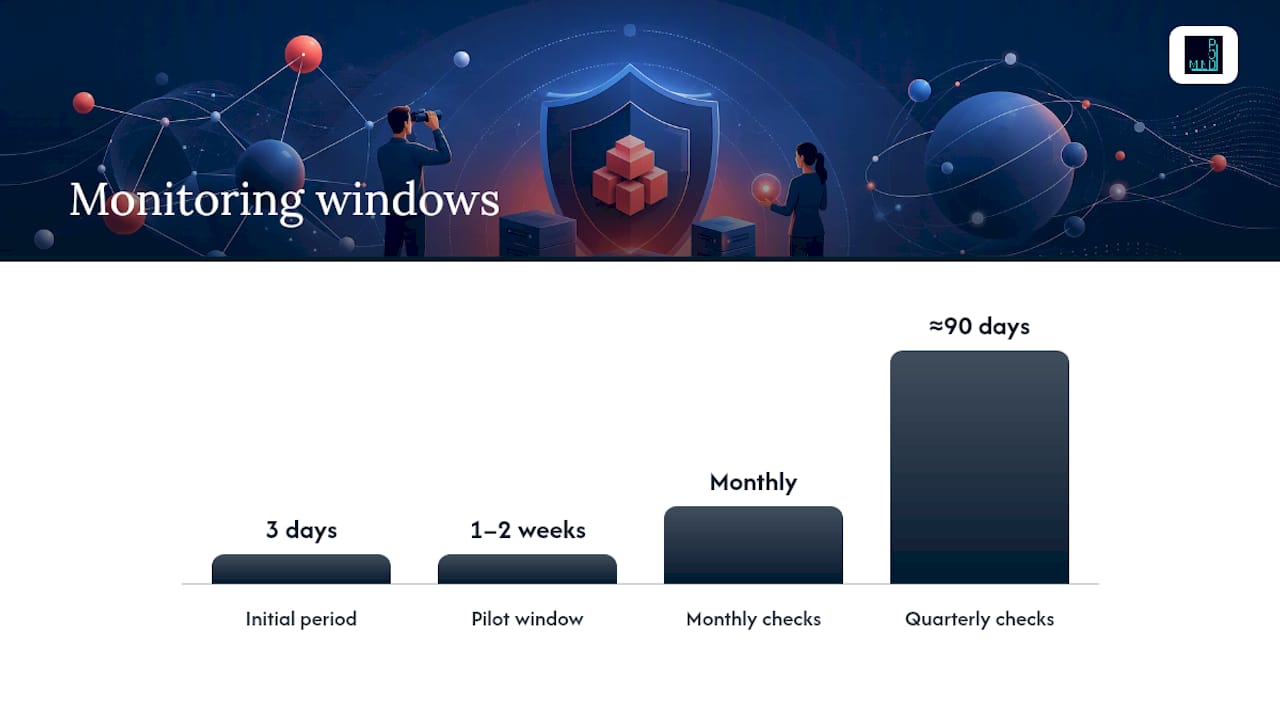
- Enable BSM for the pilot group and hold it there for at least one to two weeks before evaluating results.
- Watch legacy authentication reports, EWS usage logs, and helpdesk ticket volume for spikes tied to the new settings.
- Coordinate the timing with your Defender for Endpoint and other endpoint protection changes. Rolling out two major security shifts in the same week makes root-cause analysis nearly impossible when something breaks.
- Expand to additional rings only after the pilot window closes clean, then repeat the monitoring period at each stage.
Why the trial window matters: BSM's temporary disable feature exists specifically so you can pull a setting back without a full rollback if a dependency surfaces mid-pilot. That's a meaningfully lower-risk pattern than the all-or-nothing GPO pushes many admins are used to from the pre-BSM era.
Don't cut the monitoring window short because the first three days look quiet. Monthly reports, quarter-end automation, and seasonal workflows often surface dependencies that a one-week pilot simply won't catch.
How Do Zero Trust Assessment and Defender for Endpoint Fit In?
Baseline Security Mode tells you what Microsoft recommends. It doesn't tell you which of those recommendations matters most for your specific environment, and that's where a couple of other tools earn their place in the workflow.
- Run the Zero Trust Assessment first. Microsoft designed it to combine with baseline deployment, producing a scored, risk-prioritized gap list instead of a flat checklist, so you tackle the highest-impact items before the cosmetic ones.
- Use Microsoft Defender for Endpoint's attack-surface reduction rules and reporting to confirm baseline settings actually enforced correctly on real devices, not just in policy.
- Cross-check Intune compliance reports for devices that show policy applied but aren't actually compliant, a gap that's more common than most admins expect.
- If you're trying to gauge how far a single compromised account could spread before locking down access, a breach exposure check can help quantify that blast radius while you set priorities.
Weigh every fix against three factors: how much risk it actually removes, how much friction it adds for users, and how much engineering time it costs to implement. A setting that blocks a rarely used legacy protocol scores high on the first factor and low on the other two, which is exactly the kind of quick win that should move to the front of the queue.
Where Do You Get Baseline Packages and Track Version Changes?
The Microsoft Security Compliance Toolkit is the authoritative source for downloadable baseline packages, and it's worth bookmarking rather than relying on secondhand summaries.
- Each package bundles GPO backups, PowerShell scripts, ADMX templates, and a settings spreadsheet you can diff against your current configuration.
- Microsoft 365 Apps for enterprise baselines are published on roughly a semiannual cadence, and the current package, version v2512, includes updated recommendations reflecting recent threat patterns.
- Release notes accompany every version. Read them before you deploy, since new versions sometimes tighten defaults that were previously permissive.
Test new baseline versions in a lab or pilot ring first, the same way you'd test a firmware update. Baseline packages evolve over time, and a setting that was safe to enforce broadly in v2412 may interact differently with an add-in or automation script that got deployed since then.
What Operational Mistakes Break Baseline Rollouts?
Most baseline rollout failures trace back to access sprawl and unmapped legacy dependencies, not the settings themselves.
- Limit Global Administrator assignments and delegate through built-in roles like Security Administrator instead. The principle of least privilege applies directly to who can change baseline settings, not just to end-user permissions, and a well-structured Entra ID governance model makes this far easier to enforce consistently.
- Inventory legacy automation touching EWS, OLE, DDE, or macros before you flip anything. That inventory step alone catches most of the surprises.
- Build a helpdesk playbook and a short internal announcement before enabling restrictive settings. Support tickets drop sharply when the front-line team already knows what changed and why.
Pro Tip: Keep a running list of every exception you grant during rollout. Exception sprawl, not the baseline itself, is usually what erodes a security posture six months after go-live.
What Does a Full Baseline Rollout Checklist Look Like?
A rollout that avoids disruption follows a predictable sequence. Copy this into your own runbook and adjust the timing to your organization's change management cadence.
- Inventory legacy protocol usage, EWS-dependent tools, and macro-based automation across departments.
- Confirm minimum supported Outlook and Office builds are met before enabling Exchange-related settings.
- Enable Baseline Security Mode for a pilot group and observe for 7 to 14 days, logging every impact.
- Resolve blockers using simulation or temporary disable options rather than abandoning the setting outright.
- Expand to additional rings in stages, re-running the monitoring window at each one.
- Re-run the Zero Trust Assessment after full deployment to confirm the gap list has shrunk.
- Schedule a recurring review, ideally aligned with each new baseline package release.
| Rollout stage | Primary risk | Key action |
|---|---|---|
| Pilot | Unknown legacy dependencies | Inventory + trial disable |
| Ring expansion | Helpdesk ticket spike | Communications plan |
| Full deployment | Enforcement gaps | Defender/Intune verification |
| Ongoing | Version drift | Recurring baseline review |
Publisher Perspective: What Actually Slows SMBs Down
Most small and mid-market organizations get real value from baseline security mode fast. The setting that reliably slows them down isn't the technology. It's a legacy scheduling tool, an old EWS integration, or a macro-driven spreadsheet nobody remembers building, discovered mid-rollout instead of during inventory.
That's where an outside set of eyes earns its cost. If your environment has thin IT staffing, hybrid identity, or automation nobody fully documented, an assessment-first engagement catches those dependencies before they become support fires. The approach starts with exactly that: a prioritized plan the client owns, built before any setting gets touched.
— jaras
Get a Free Security Assessment From Mindpodtech
Rolling out Baseline Security Mode without breaking anything for your staff comes down to inventory, pacing, and monitoring, and that's exactly where a fractional security partner earns its keep for a company that can't justify a full-time security architect. Mindpodtech's free technology assessment starts by mapping your legacy dependencies and current baseline gaps, then hands you a prioritized, plain-language rollout plan you own outright.

Deliverables from that engagement include a pilot plan scoped to your environment, a monitoring configuration tied to the settings you're actually enforcing, a rollback playbook for anything that slips through testing, and a clean operational handoff to your team. If you want that monitoring running continuously instead of checked manually every quarter, MITB operationalizes baseline and endpoint telemetry across Microsoft, Entra, and Azure so drift gets caught before it becomes an incident. Book the free assessment and get your prioritized rollout plan before your next baseline version ships.
Sources
Bookmark these directly rather than relying on summaries:
- Baseline security mode settings | Microsoft Learn
- Security baseline for M365 Apps for enterprise v2512 | Microsoft Community Hub
FAQ
What Is Baseline Security Mode and What Does It Do?
Baseline Security Mode is a Microsoft 365 admin center feature that applies a curated set of security settings across Microsoft 365 Apps, Teams, Exchange Online, SharePoint, OneDrive, and Entra ID, replacing settings that previously required separate PowerShell configuration.
Is the Microsoft Baseline Security Analyzer Still Available?
Microsoft Baseline Security Analyzer (MBSA) was a legacy Windows vulnerability scanner that Microsoft retired years ago; it's unrelated to current Microsoft 365 security baselines and Baseline Security Mode, which are the actively maintained tools for this purpose today.
How Do You Run a Microsoft Security Baseline?
Navigate to the Microsoft 365 admin center, go to Settings, then Org Settings, then Security and Privacy, then Baseline Security Mode, review the recommended settings, and use simulation or temporary disable options to test before enabling for a pilot group.
What Is the Windows 11 Security Baseline?
The Windows security baseline is a separate set of recommended OS-level hardening settings distributed through the Microsoft Security Compliance Toolkit, distinct from the Microsoft 365 application and identity baselines covered by Baseline Security Mode.
How Often Do Microsoft 365 Security Baselines Get Updated?
Baseline packages for Microsoft 365 Apps for enterprise typically publish on a semiannual cadence, with the current version, v2512, available through the Security Compliance Toolkit along with detailed release notes.