

Yes, you need a backup plan for Microsoft 365 beyond what Microsoft includes by default. The three moves that matter most: turn on Microsoft 365 Backup or a vendor solution built on the same Backup Storage platform, set clear RTO and RPO targets for each workload, and run a test restore inside 30 days. Retention length and billable storage should factor into your tool choice from day one, not after the first invoice surprises you.
TL;DR:
- Setting clear recovery time and recovery point objectives before selecting backup tools ensures effective prioritization and minimizes downtime during incidents.
- Protecting recycle bin contents and online archives can significantly increase billable storage, requiring careful sizing and regular cost reviews.
- Regular, small restore tests are more effective for validating backup integrity and speed than infrequent large simulations, and cost little to implement.
- Native Microsoft 365 retention policies are limited to short-term recovery, leaving gaps for long-term, configuration, and permission recovery needs.
- Enforcing least-privilege access and documenting manual restore procedures are critical for minimizing security risks and ensuring operational readiness.
- ✓Backup and disaster recovery
- ✓Security assessment and hardening
- ✓Cloud architecture and cost optimization
Table of Contents
- Microsoft 365 Backup Best Practices Checklist
- What Does Microsoft 365 Actually Cover, and Where Are the Gaps?
- Building Your Operational Implementation Checklist
- How Much Should You Budget for Microsoft 365 Backup?
- How Often Should You Test Restores?
- Security and Compliance Controls You Shouldn't Skip
- When Should You Bring in Outside Help?
- What This Article's Research Actually Supports
- Get a Backup Strategy Built Around Your Actual Risk
- Sources
- FAQ
Microsoft 365 Backup Best Practices Checklist
Building a real backup program means working through priorities in order, not tackling everything at once. Here's the sequence that holds up in practice.
- Inventory what needs protection. Classify mailboxes, SharePoint sites, OneDrive accounts, and Teams data by business criticality, not by convenience. A finance team's SharePoint library and an intern's OneDrive don't need the same treatment.
- Set RTO/RPO tiers before picking tools. A tier-1 mailbox might need a 10-minute RPO and a 4-hour RTO; a rarely touched archive site can tolerate daily backups and a 48-hour restore window. Tool selection should follow these numbers, not the reverse.
- Choose between native Microsoft 365 Backup and an ISV built on Backup Storage. Both use the same underlying platform, so the real decision comes down to restore speed at scale and how much admin overhead you're willing to carry. Microsoft's own guidance stresses prioritizing fast, at-scale recovery for incidents like ransomware or mass deletion, since slow restores extend downtime exactly when the business can least afford it.
- Design retention tiers with lifecycle transitions, moving older recovery points to cheaper storage classes where your platform supports it.
- Enforce least-privilege service principals with just-in-time approval for restore operations, so no single compromised account can both delete data and block its recovery.
- Automate monitoring and integrity checks, and name an actual owner for backup health, not "IT" as an abstraction.
Pro Tip: Assign one named person, not a team alias, as the accountable owner for backup verification. When everyone owns it, no one checks it until the day you need a restore that isn't there.
For SMBs juggling budget against coverage, a hybrid model often makes sense: protect every critical mailbox and SharePoint site with a managed backup tool, and lean on native retention for lower-priority collaborative files to keep costs in check.
What Does Microsoft 365 Actually Cover, and Where Are the Gaps?
Microsoft's built-in protections are stronger than they were even a couple of years ago, but they were never designed to replace a backup strategy. Microsoft 365 Backup provides a one-year retention window for Exchange, SharePoint, and OneDrive, with Exchange generating recovery points every 10 minutes across all 52 weeks. SharePoint and OneDrive get that same 10-minute cadence for the first 14 days, then drop to weekly snapshots thereafter for an extended retention period.
That 14-day detail matters more than it looks. Native retention policies in Exchange Online and SharePoint typically hold deleted items for 14 to 93 days depending on configuration, which leaves a real gap for tenant configuration changes, permission structures, and long-tail recovery needs that a compliance retention policy was never built to solve.
| Coverage type | What it protects | Typical window |
|---|---|---|
| Native mailbox/site retention | Accidental deletion, short-term recovery | 14 to 93 days |
| Microsoft 365 Backup | Exchange, SharePoint, OneDrive recovery points | 1 year, 10-minute RPO tapering to weekly |
| Microsoft Purview retention | Compliance holds, eDiscovery | Policy-defined, not restore-focused |
Purview retention policies exist for legal and compliance holds, not disaster recovery. Confusing the two is one of the most common mistakes SMBs make when they assume "we have retention turned on" means "we have backups."
Building Your Operational Implementation Checklist
Getting from strategy to a working backup program comes down to a handful of concrete configuration steps, roughly in this order:
- Scope your protection units. Group mailboxes, sites, and OneDrive accounts into protection policies aligned to your RTO/RPO tiers rather than one blanket policy for everything.
- Size for hidden data. Recycle bins and online archives count toward your protected footprint. Budget for a multiple of your visible active data until you've measured your actual numbers, as recycle bins and archives add to protected data footprint.
- Configure Entra service principals with least privilege, scoping API access to only the operations a backup job actually needs. Broad admin consent on a backup tool is an unnecessary attack surface.
- Set up monitoring and alerts for failed backup jobs, storage threshold breaches, and stalled protection policies, not just a daily summary email nobody reads.
- Document manual restore steps for scenarios your automation doesn't cover, like a single mailbox item restore during a live incident.
- Automate restore verification where possible, using scripts that confirm data integrity rather than just confirming a job "completed."
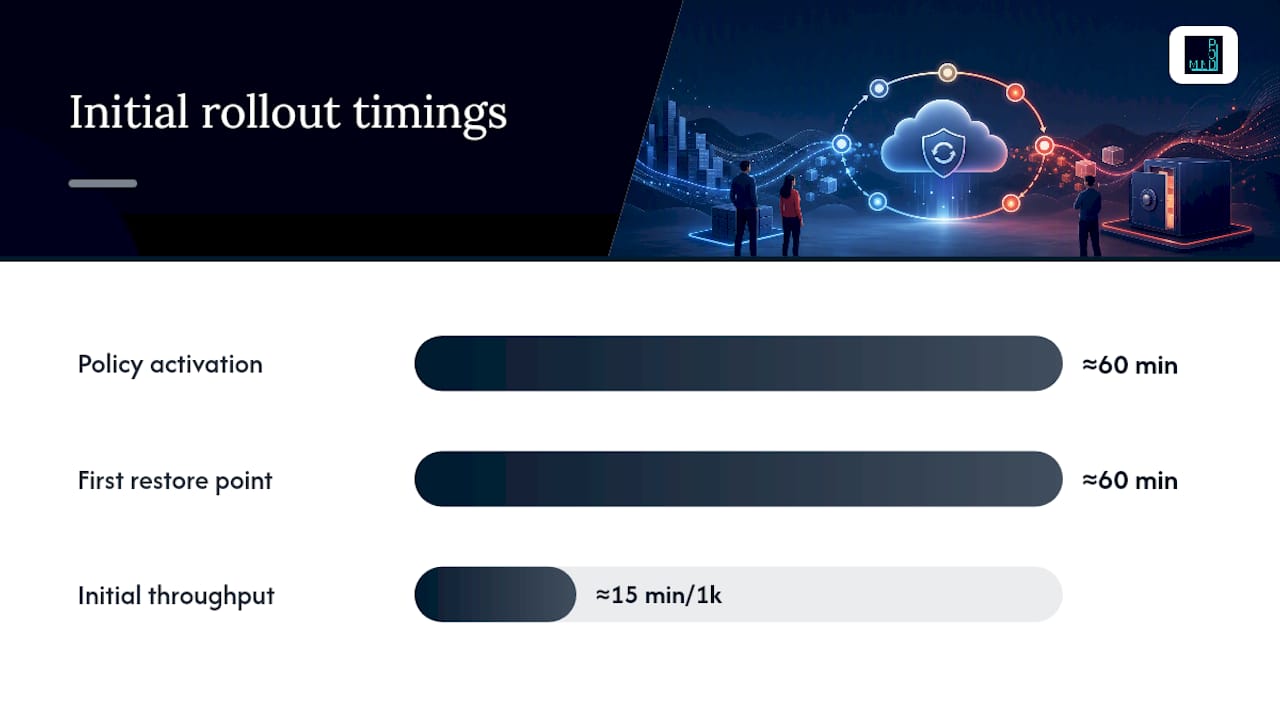
Expect the initial rollout to take some patience. Activating a new protection policy typically takes up to an hour to process, plus another hour to generate the first restore points, and initial throughput runs around 15 minutes per 1,000 protection units for the first backup or a large incremental add, according to Microsoft's own documentation. Plan onboarding windows accordingly instead of assuming backups are live the moment you flip the switch.
Pro Tip: Run your first restore test during the onboarding window, not after. If a protection policy is misconfigured, you want to find out in week one, not during an actual incident three months later.
Tools like Minds In a Techs Box can help automate recurring health checks and restore verification so this doesn't fall on a single overworked admin.
How Much Should You Budget for Microsoft 365 Backup?
Microsoft 365 Backup runs on a pay-as-you-go pricing model based on protected data volume, not per-seat licensing. The catch is what counts toward that volume: recycle bin contents and online archives both get billed as protected content, even though they're invisible in most day-to-day size estimates.
That's why the 1.3 to 1.6 times multiplier on active data matters for budgeting, not just technical planning. A company with visible mailbox and SharePoint data should expect to budget against a significant multiple of that size for billable protected content until an actual measurement replaces the estimate.
Cost-control tactics that actually move the number:
- Protect only workloads that meet your tier-1 or tier-2 criteria; don't backup every shared drive by default.
- Tier older recovery points to lower-cost storage classes where your platform allows it.
- Schedule quarterly retention reviews to catch protection policies that have outgrown their original scope.
- Purge stale recycle bin content on a defined schedule rather than letting it accumulate silently.
Get a rough monthly estimate before you commit to a retention tier, and revisit it every quarter. Costs that looked reasonable at 500 GB of active data can shift noticeably once archives and deleted-item retention are added into the billable total.
How Often Should You Test Restores?
A backup you haven't tested is a hypothesis, not a plan. Azure's well-architected disaster recovery guidance is explicit that recovery plans require documented runbooks and regular restore drills to actually validate RTO and RPO targets, not just assume them.
A cadence that works for most SMBs:
- Weekly small restores — a single mailbox, a document library, a handful of Teams messages. Track time-to-restore and integrity every single time.
- Quarterly targeted bulk restores — a full mailbox or SharePoint site, simulating a real incident scope.
- Annual full-scope rehearsal — treat it like a fire drill, with executive visibility into the results.
Testing frequent, small restores tends to catch more real problems than rare, large rehearsals, so run both but weight your effort toward the weekly cadence.
| What to capture | Why it matters |
|---|---|
| Time-to-restore | Validates your RTO target against reality |
| Data integrity check | Confirms the restore isn't just fast, but correct |
| User acceptance sign-off | Confirms the restored data is actually usable |
| Audit log export | Provides evidence for compliance and executive reporting |
Feed every drill's results into your RTO and RPO documentation and update SLAs when the numbers don't match what you promised leadership. A documented DR testing runbook makes this repeatable instead of reinventing the process every quarter.
Security and Compliance Controls You Shouldn't Skip
Least privilege isn't optional for backup service principals. Scope API access tightly, use just-in-time elevation for restore operations, and treat broad standing admin access as a liability rather than a convenience.
Microsoft 365 Backup stores recovery data on append-only blobs, isolated from tenant retention and deletion policies, which is a meaningfully different protection model than "immutable" in the strict compliance sense. It's resistant to accidental or malicious deletion from within the tenant, with built-in safeguards during offboarding, though it still lives inside the Microsoft 365 trust boundary rather than an air-gapped external copy.
- Enable multi-admin approval for changes to backup or retention policies.
- Turn on audit logging for every backup configuration change, not just restores.
- Apply legal hold and eDiscovery retention separately from your disaster recovery backups. They solve different problems.
The real question isn't "is this immutable," it's "can it be deleted by one compromised account acting alone." If the answer is no, you've built something worth trusting.
Regulated industries, healthcare and legal in particular, may still need an external copy outside the Microsoft trust boundary to satisfy specific audit or data residency requirements. That's a deliberate, justified exception, not a default.
When Should You Bring in Outside Help?
Most SMBs don't get backup wrong because they're careless. They get it wrong because nobody has time to translate "we should probably back this up" into RTO tiers, service principal scoping, and a tested restore runbook. That's the gap an assessment is built to close.
A practical assessment should prioritize workstreams by actual business risk, starting with the mailboxes and sites that would hurt most if lost, not the ones that are easiest to configure first. The common misconfigurations worth catching early:
- Backup policies scoped too broadly, driving up billable storage without improving recovery outcomes.
- No documented RTO/RPO tiers, so restore priority gets decided during the incident instead of before it.
- Zero restore testing since initial setup, leaving integrity and timing entirely unverified.
- Service principals with far more access than the backup job actually requires.
Expect real deliverables out of a good assessment: a written runbook, a prioritized backlog ranked by risk, and actual test-restore evidence, not a slide deck of generic recommendations.
What This Article's Research Actually Supports
The conventional advice on Microsoft 365 backup treats retention length as the headline metric, and that's the wrong lens. A one-year retention window sounds reassuring until you realize restore speed at scale is what determines whether a ransomware incident costs you an afternoon or a week. Microsoft's own whitepaper guidance backs this: prioritize fast, at-scale recovery, then worry about retention depth.
The billing side gets underweighted too.
If you take one thing from this: test a small restore this month. Not next quarter, not after the "big" rollout is finished. A weekly habit of small, boring restores catches more real failures than any annual rehearsal ever will, and it costs almost nothing to start.
— jaras
Get a Backup Strategy Built Around Your Actual Risk
A practical alternative to guessing your way through Microsoft 365 backup configuration is available. Instead of choosing between an underpriced generic tool and an enterprise DR vendor priced for companies ten times your size, you get a plan sized to your actual mailbox count and retention needs.

The Enterprise Intelligence Assessment is free and starts with exactly the workstreams this article covers: RTO/RPO tiering, protection scope, and a first test restore. From there, engagement can extend into Fractional CTO oversight for ongoing governance or a run/monitor handoff once your backup program is live.
| What you get | Outcome |
|---|---|
| Free technology assessment | Prioritized backlog ranked by risk |
| RTO/RPO workstream mapping | Documented recovery targets per workload |
| Implementation support | Configured policies, tested restores |
| Run/monitor handoff | Ongoing monitoring without a full-time hire |
Book the free assessment through the Enterprise Intelligence Assessment page and get a plan you own, whether you implement it yourself or bring Mindpodtech in to run it.
FAQ
What is the best backup solution for Microsoft 365?
The best solution is whichever tool, native Microsoft 365 Backup or an ISV built on the same Backup Storage platform, gives you the fastest restore at the scale your business actually needs, backed by tested RTO/RPO targets rather than retention length alone.
What is the 3-2-1 rule for backing up, and does it apply to Microsoft 365?
The traditional 3-2-1 rule calls for three copies of data, on two different media types, with one copy offsite. In a Microsoft 365 context, the modern equivalent is keeping tenant data protected inside a dedicated backup layer separate from native retention, with at least one copy outside the reach of a single compromised admin account.
What is the best backup tool for Microsoft 365?
Look for a tool that preserves the Microsoft 365 trust boundary, offers scoped least-privilege API access, and publishes real restore performance data rather than just retention duration. Speed and integrity at restore time matter more than marketing claims about coverage.
What are the most important Microsoft 365 backup best practices to start with?
Set RTO/RPO tiers before choosing a tool, run a test restore within your first 30 days, and size your budget for recycle bin and archive data, which count toward billable protected storage even though they're often invisible in casual estimates.
Does Microsoft 365 backup cost extra beyond a Microsoft 365 license?
Yes. Microsoft 365 Backup uses pay-as-you-go pricing based on protected data volume, separate from your Microsoft 365 subscription, and the exact rate is available on Microsoft's pricing page rather than bundled into standard licensing.